I have a song, recorded in 77bpm. I listened to it now, and I think it may be to slow. I want to speed up the entire thing to 83bpm so I can listen how it will sound. The only solution I have found so far is to change the tempo of the song, then manually change the tempo of all the audio, using the "Time stretch region length to locators" thing, but it's a pain. Is there a way I can do this.
Asked
Active
Viewed 5.3k times
6
3 Answers
3
Best way I could find.
Make all your audio "follow tempo"
The way to do this is to mark the region,
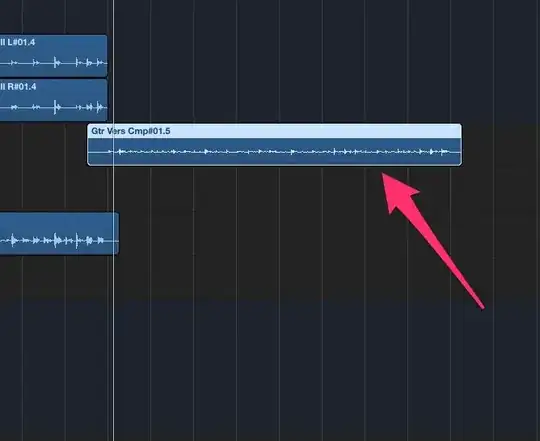 and check the "follow tempo" checkbox in the inspector.
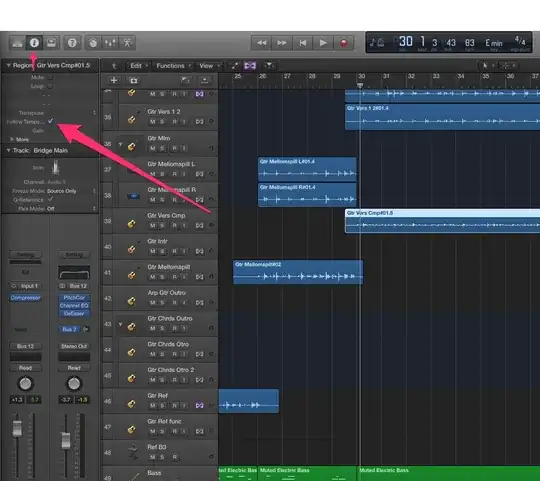
After you have done that you can just change the BPM to the desired speed.
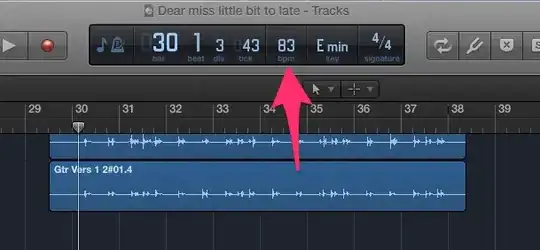
Now, sometimes the "follow tempo" checkbox does not show up. I read somewhere that this is because the follow tempo feature is only available for regions recorded in the current session/project(unsure). And not available for bounced stuff.(say you bounced some MIDI or something)
For me though, the regions that did not have this checkbox in the inspector followed the tempo when it was changed anyway, damned if I know why.
If it doesn't, you could just change the tempo of these regions manually by using the "Time stretch region length to locators" feature.(google it, you'll find it)
EDIT: It seems that "follow tempo" is not available for regions in tracks that have "flex" enabled. I at least had a region where this was most definitely the case.

SomeNorwegianGuy
- 223
- 1
- 2
- 8
0
I am not really familiar with Logic10 so I couldn't give a step by step for this (I use Logic 9) but I can offer a thought that should translate to 10.
If you just want "listen to how it will sound", as you mention in the question, you could bounce the whole track down and adjust its tempo. This will allow you to only have to adjust the tempo of one track/region, which will be relatively quick, and you can hear a preview before you adjust all of the tracks/regions. This will also allow you to try a few different tempos relatively quickly and be able to experiment with the tempo if the change wasn't satisfactory.
Once you have a tempo defined, you can likely change a handful of tracks at once. Bounce everything down to new tracks, all with the same starting point. Then adjust the tempo. Now try selecting all of the tracks at once and drag the length to fit. I'm not familiar Logic 10 , like I mentioned, so I'm not sure how the time stretch function is controlled there but in 9 you can click and drag.
Hopefully this does translate to 10 for you. You can also experiment with bouncing the tracks without any effects, so you can change the tempo of the raw audio, then move the newly bounced regions back to the tracks with effects. This should give you a cleaner time shift and allow everything to be edited after the change, especially effects that are tempo sensitive. I would want to get rid of the empty space on the tracks when they are silent, which I would do by selecting all of the tracks that are silent at once, then either using the split region function, or by using the marquee tool.

Basstickler
- 266
- 1
- 5
0
- Set the tempo of your project to 83 bpm.
- Right click in and empty space in your arrange window and click on select all.
- Expand your areangent window to a large size.
- While holding down Option, drag the corner of one of the audio regions to the nearest bar (it should be just a short distance).
- This will timestretch all of your regions to the new tempo. This can take a long time for your Mac to process all at once, so you may just want to execute the procedure on each track individually.

While musicians also design sounds, it is a different style with different requirements and needs than what is covered here.
– AJ Henderson Jun 09 '14 at 13:45